Drive-Thru Intelligence

Drive-Thru Analytics That Show You Where Every Second Goes

A drive thru timer system that times every car at each station in your lane, from the menu board right through to the pickup window.

Scroll
The dashboard

See how fast every one of your stores is serving

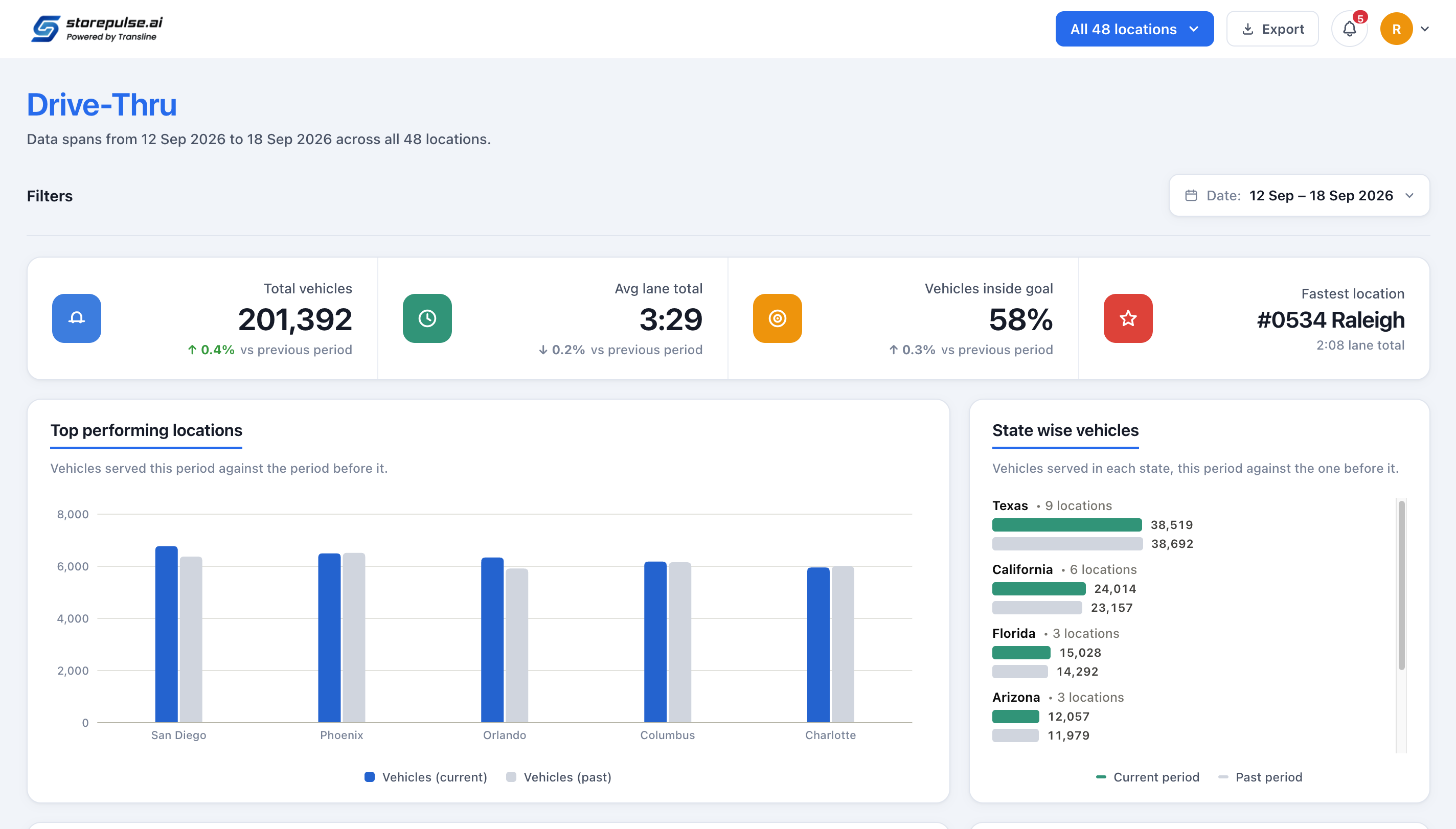
The dashboard shows how quickly each store serves its cars, which station slows the lane and which hours are busiest. Drive thru speed of service appears in seconds against your goal, and you can open any number to see the cars behind it. Hover the markers to explore.

StorePulse · Drive-Thru
Drive-Thru dashboard in StorePulse with panels for total vehicles, average lane total, vehicles inside goal, fastest location, top performing locations and state-wise vehicles
Vehicles servedCars served on the dates you choose, compared with the same number of days just before.
Average lane totalAverage time from reaching the menu board to leaving the pickup window, for every car.
Time against goalHow many seconds the average lane is inside or over its goal, so the gap is easy to act on.
Top locationsYour five busiest stores by cars served, with this period set beside the previous one.
Vehicles by stateCars served in each state, this period beside the last, so you can see where your volume sits.
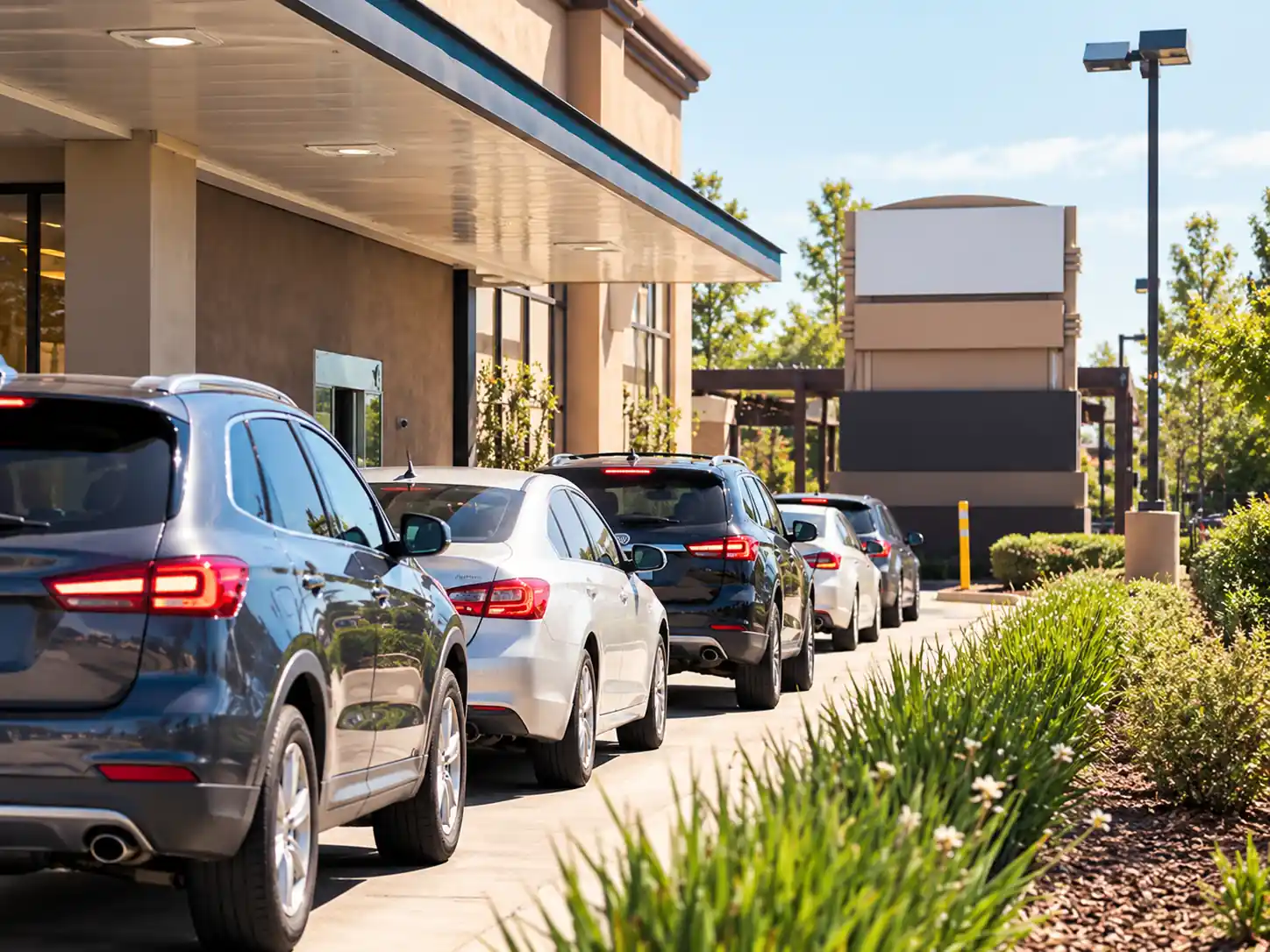
Line of cars waiting one behind another along a drive-thru lane beside a restaurant building on a sunny day
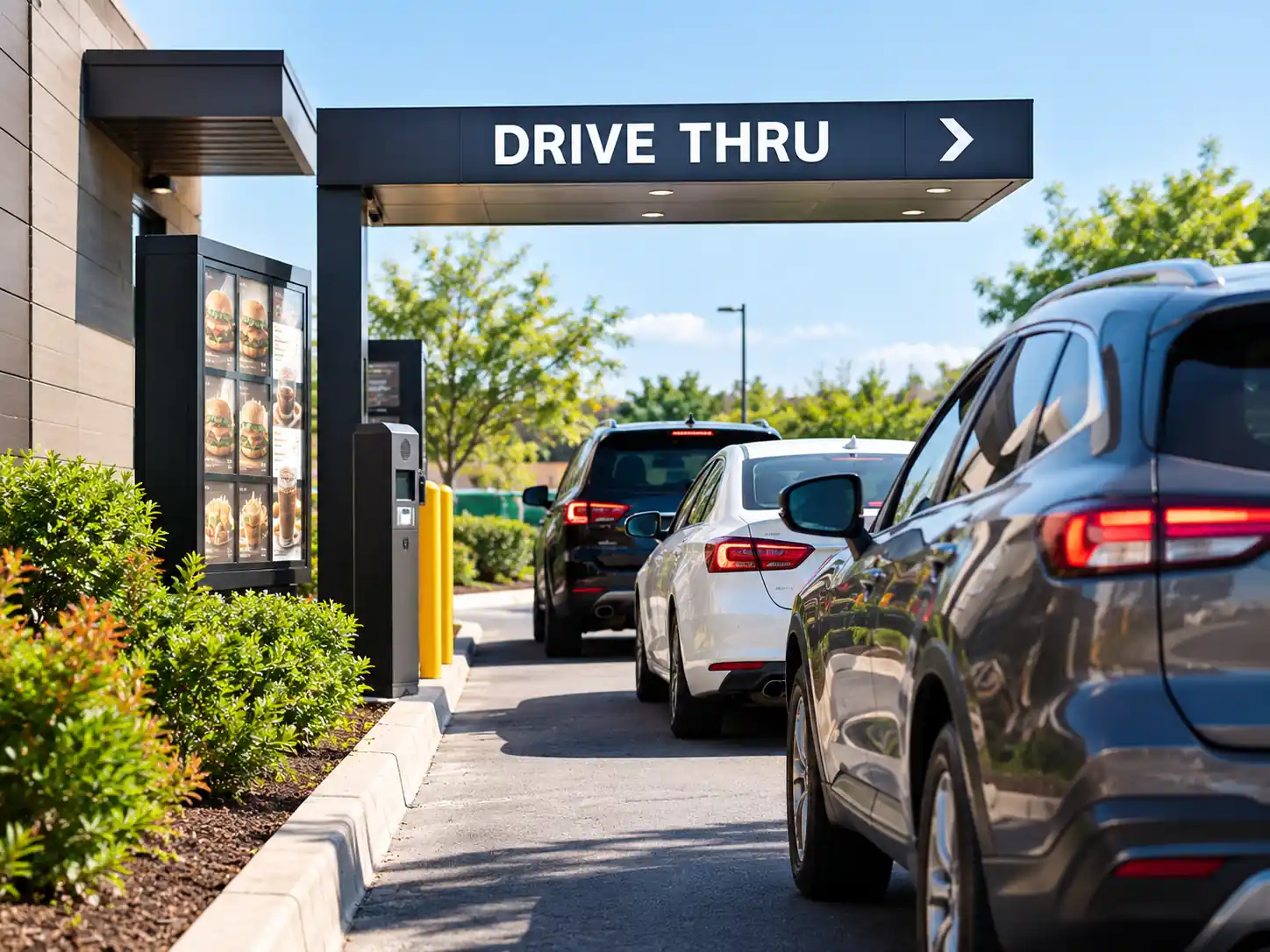
Cars queued in a drive-thru lane under a Drive Thru canopy with a menu board and order post on the left
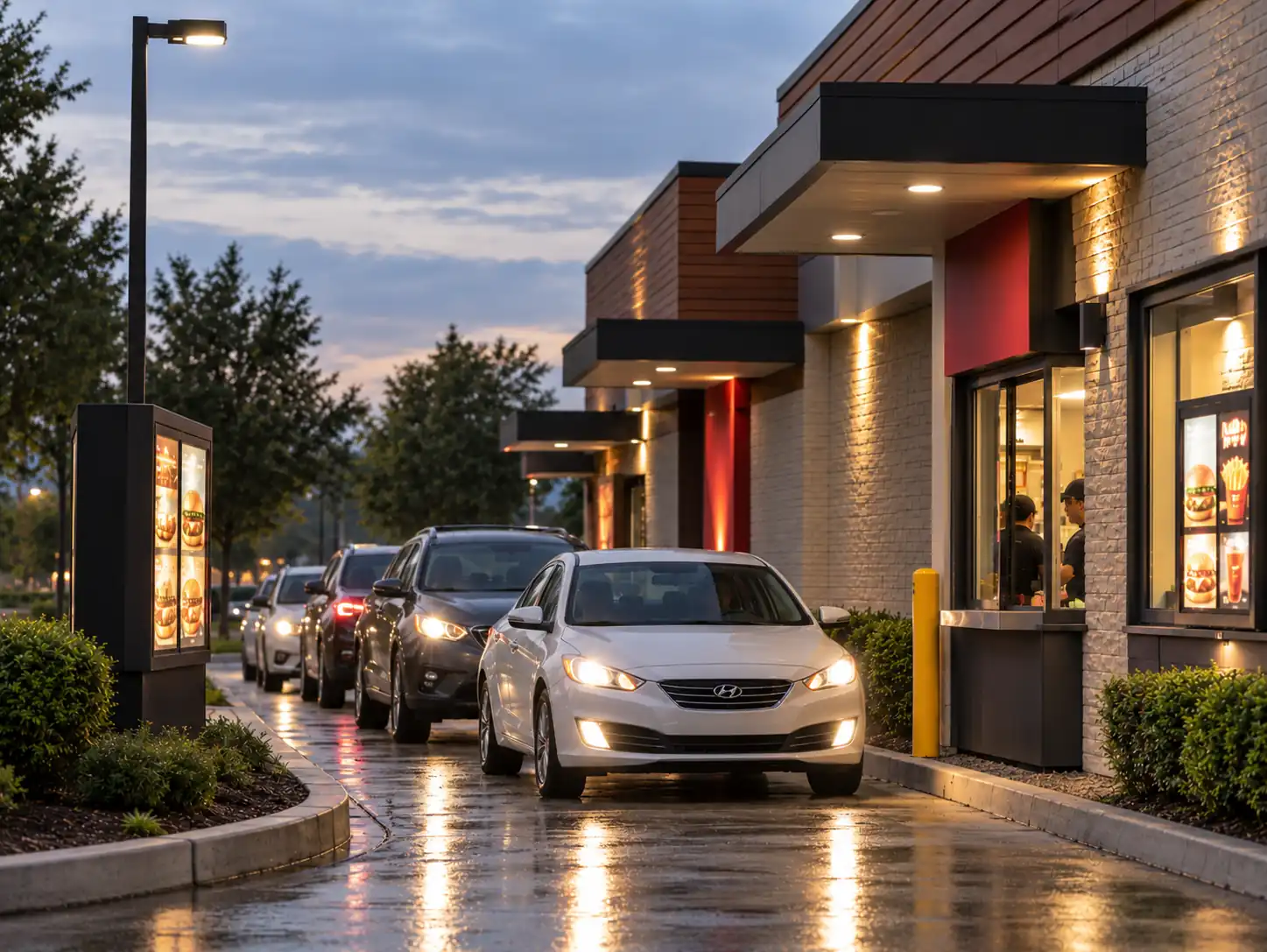
Cars queued on a wet drive-thru lane at dusk with a white car at the pickup window and staff inside
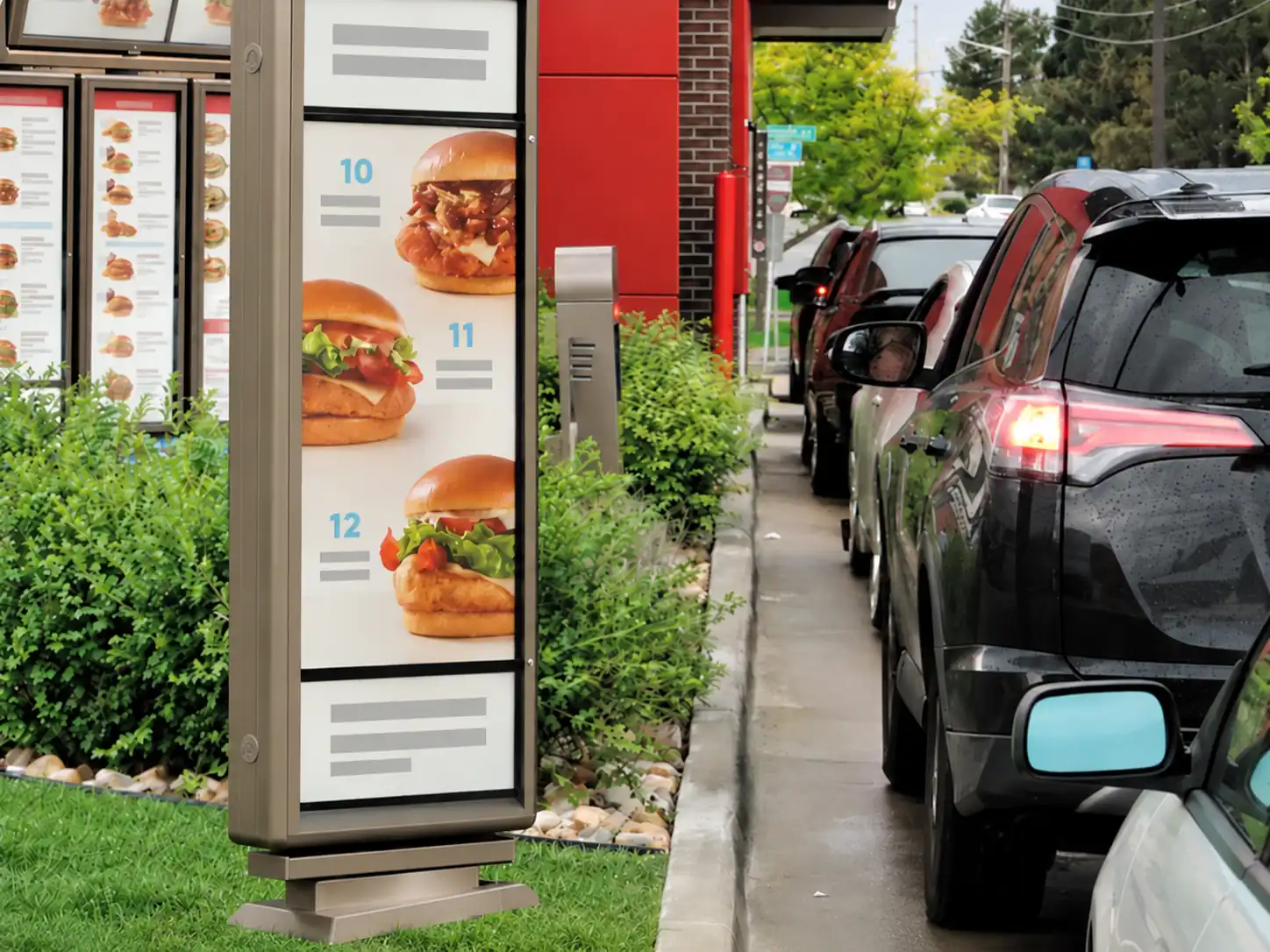
Tall menu board showing burger photos beside a drive-thru lane where a row of cars waits
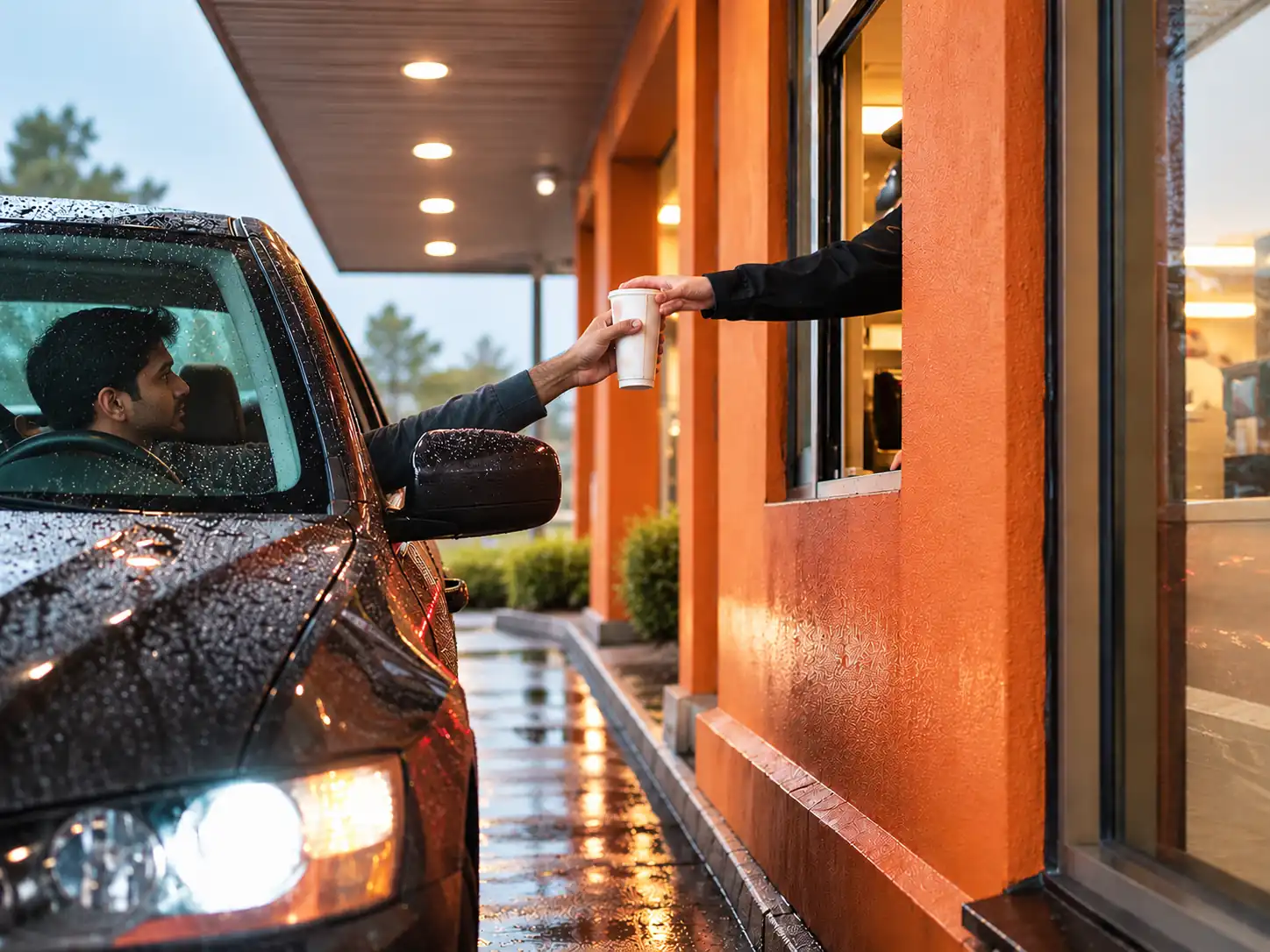
Staff member passing a paper cup through the drive-thru window to a driver in a rain-covered car
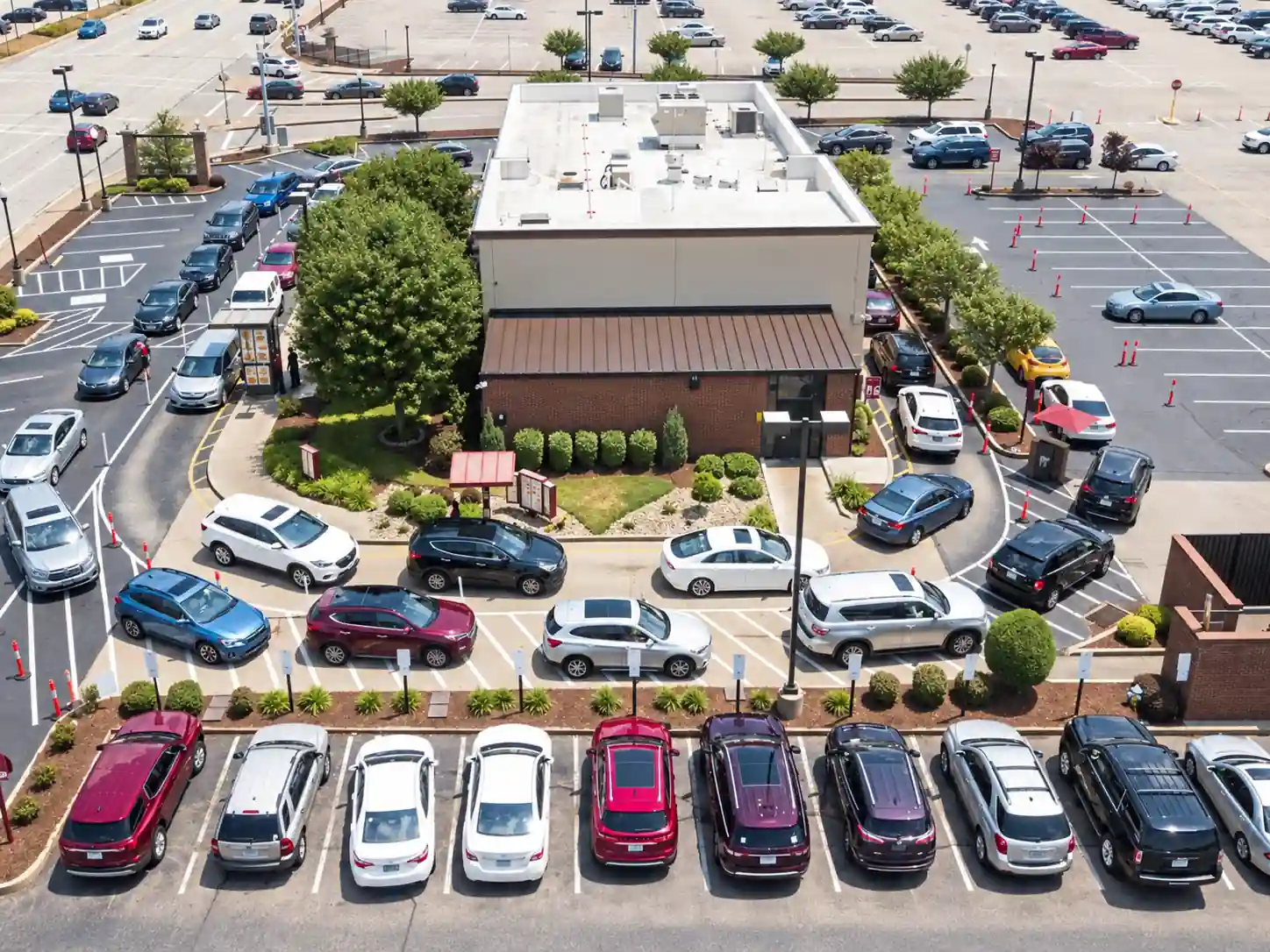
Aerial view of a restaurant surrounded by a crowded parking lot full of cars with traffic cones
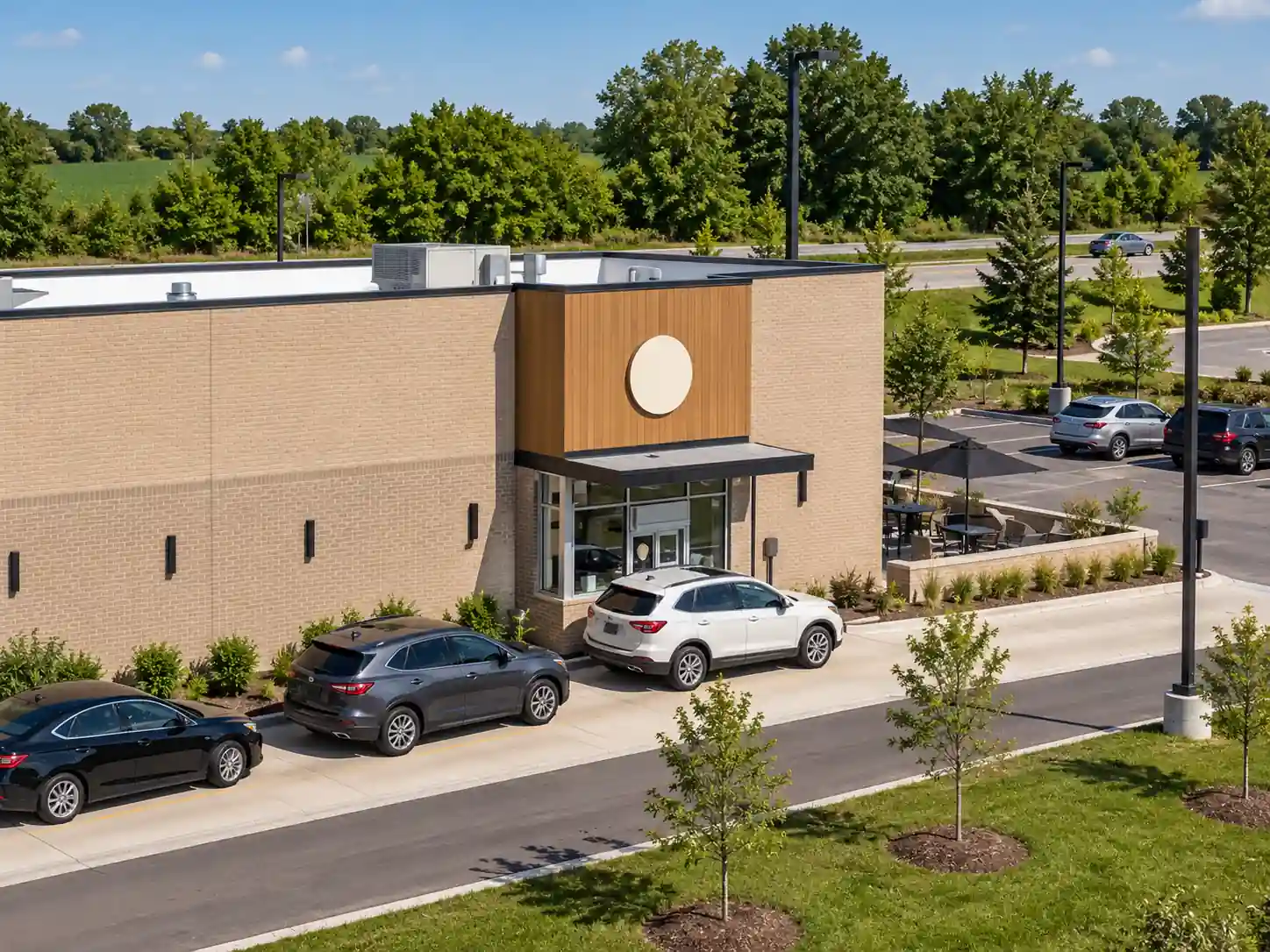
Elevated view of three cars waiting in a drive-thru lane along the side of a brick restaurant with an outdoor seating area
Wait time

How long are your guests really waiting?

Most stores know their sales per hour, but not how long a car sat in line or how many minutes passed between ordering and food in hand.
Bottlenecks

Which part of the lane is slowing you down?

When the line backs up at lunch, sales reports can't tell you whether the delay started at the menu board, the pay window or pickup.

Traffic

How many cars come through, and how many give up?

Daily car counts and rush hours are often guessed. And a headset timer never sees the cars that leave the line before they reach it.

The shift

Your drive-thru, measured in real seconds.

Cameras covering your lane feed an on-site unit that times every car. Only the timings go to the cloud, so your crew and head office see the same numbers.
  • Wait timeFrom guessing how long guests wait, to a lane time for every car, from the menu board to pickup.
  • BottlenecksFrom a line that feels slow, to the one station running over its goal, and by how many seconds.
  • TrafficFrom rough guesses about traffic, to car counts by hour and day, plus every car that left the line.
How Drive-Thru helps

Three questions, answered in seconds.

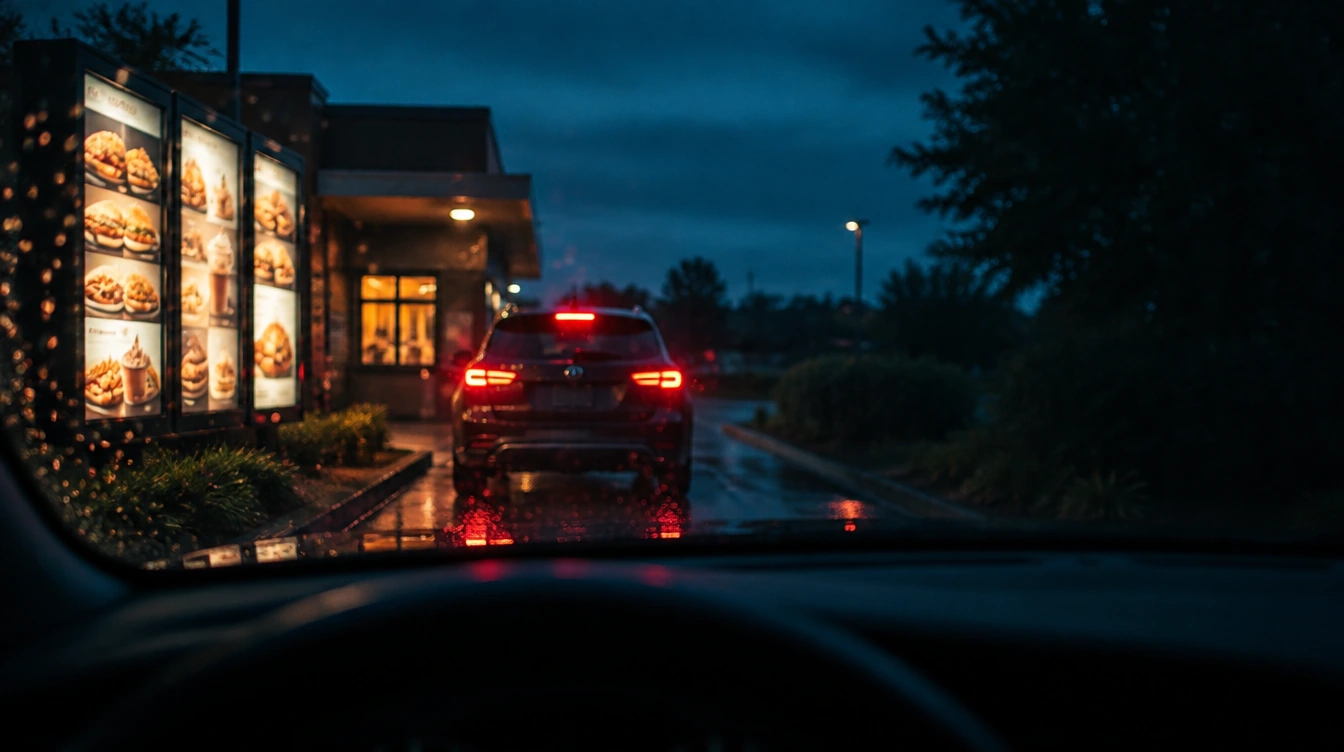
View through a car windshield at night of a vehicle waiting in a drive-thru lane beside lit menu boards
01 · Wait time

See how long every guest really waits.

Every car gets a lane time, from the menu board to pickup, set against your goal.
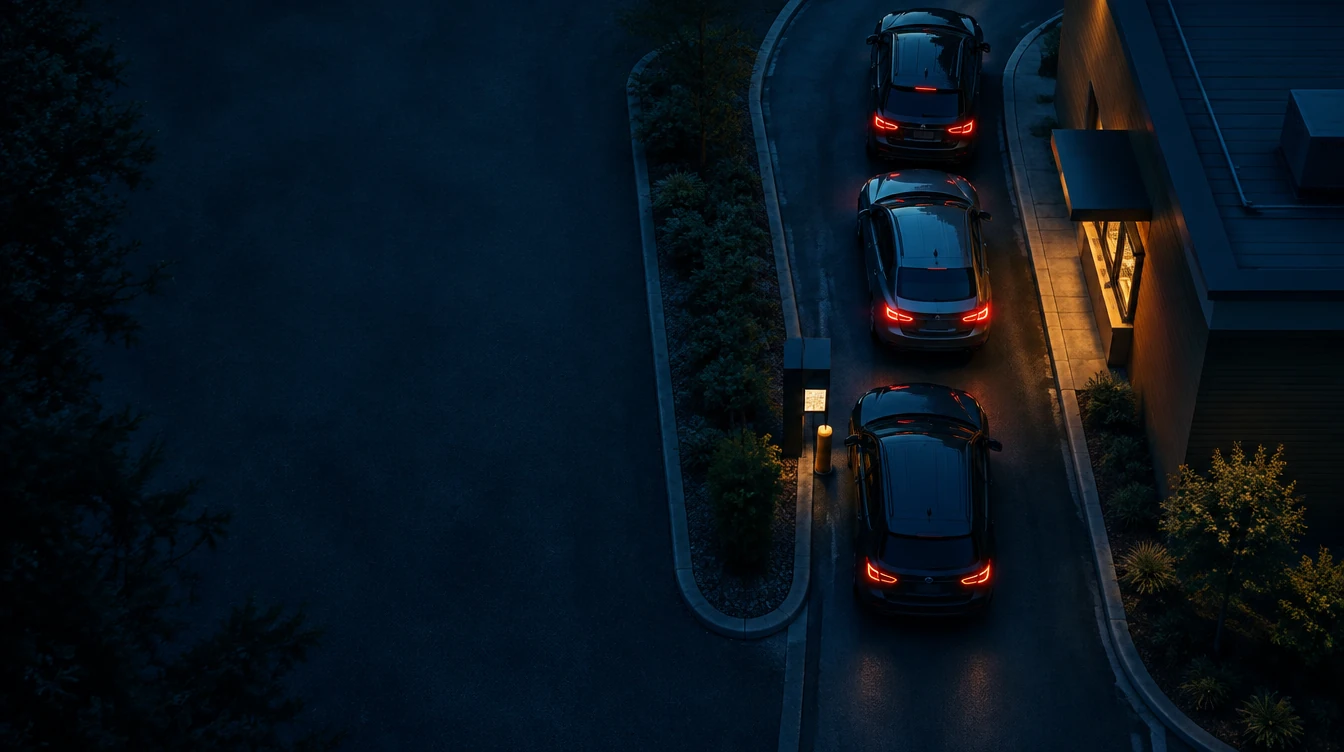
Aerial night view of three cars lined up in a narrow drive-thru lane beside a restaurant
02 · Bottlenecks

Find the station that is slowing the lane.

Each station is timed on its own, so the one running over its goal stands out.
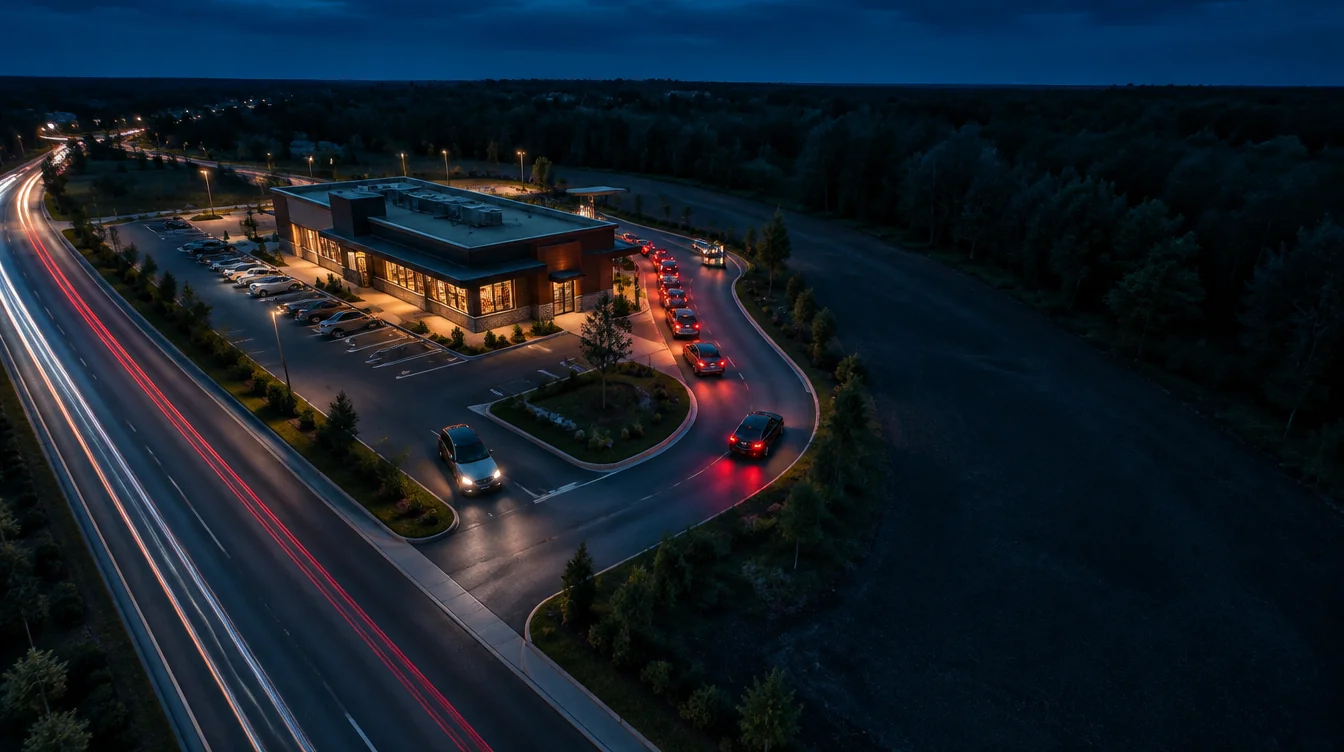
Wide aerial night view of a restaurant with a long drive-thru queue beside a road with car light trails
03 · Traffic

Know when cars come, and when they give up.

Car counts by hour and day for every store, plus the cars that left without ordering.

Capabilities

Four things Drive-Thru does for every lane.

Drive-Thru is part of StorePulse, so your team works with the same header, store selector, exports and alerts it already knows, with no new tool to learn.

01 — Timing

Times every station.

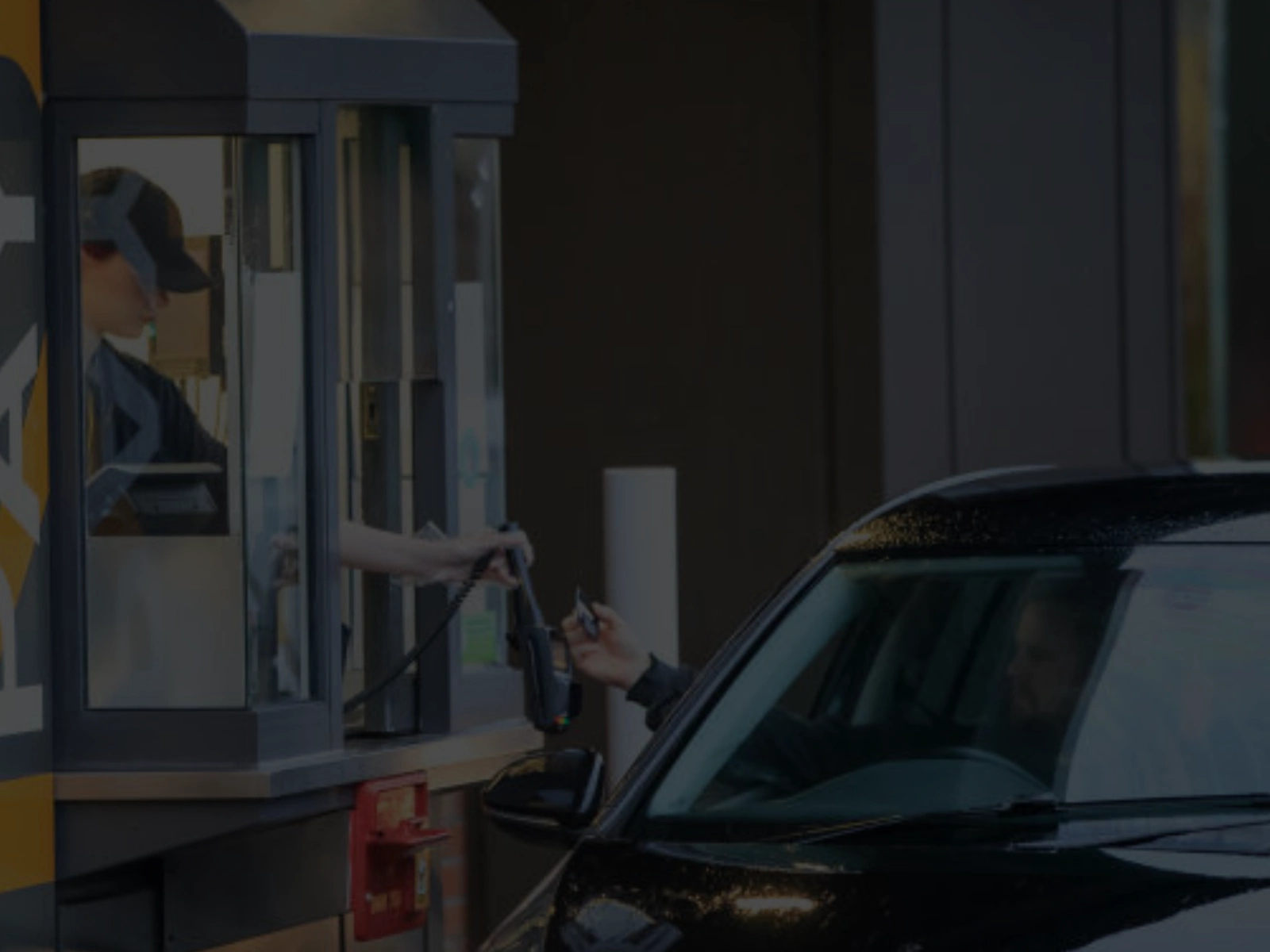
Each car is timed at the menu board, in the line, at the pay window and at pickup, then given a lane total.
  • Time each car at every station in the lane
  • Measure each station against its own time goal
  • See the total time each car spends in the lane
Restaurant worker in a cap handing a card reader through a drive-thru window to a driver in a dark car
Lane 2 — stage timing
Current vehicle, live
Menu0:12
Order0:41
Pay0:28
Pickup0:54
Tracking SUV · 2:15 in laneSlowest: Pickup
02 — Proof

Backs every number with real cars.

Every insight is built on real activity in your lane, so your team can trust what it sees and act on it with confidence.
  • Test the numbers against your current timer first
  • Find where each car spent the most time
  • Know if delays are constant or only occasional
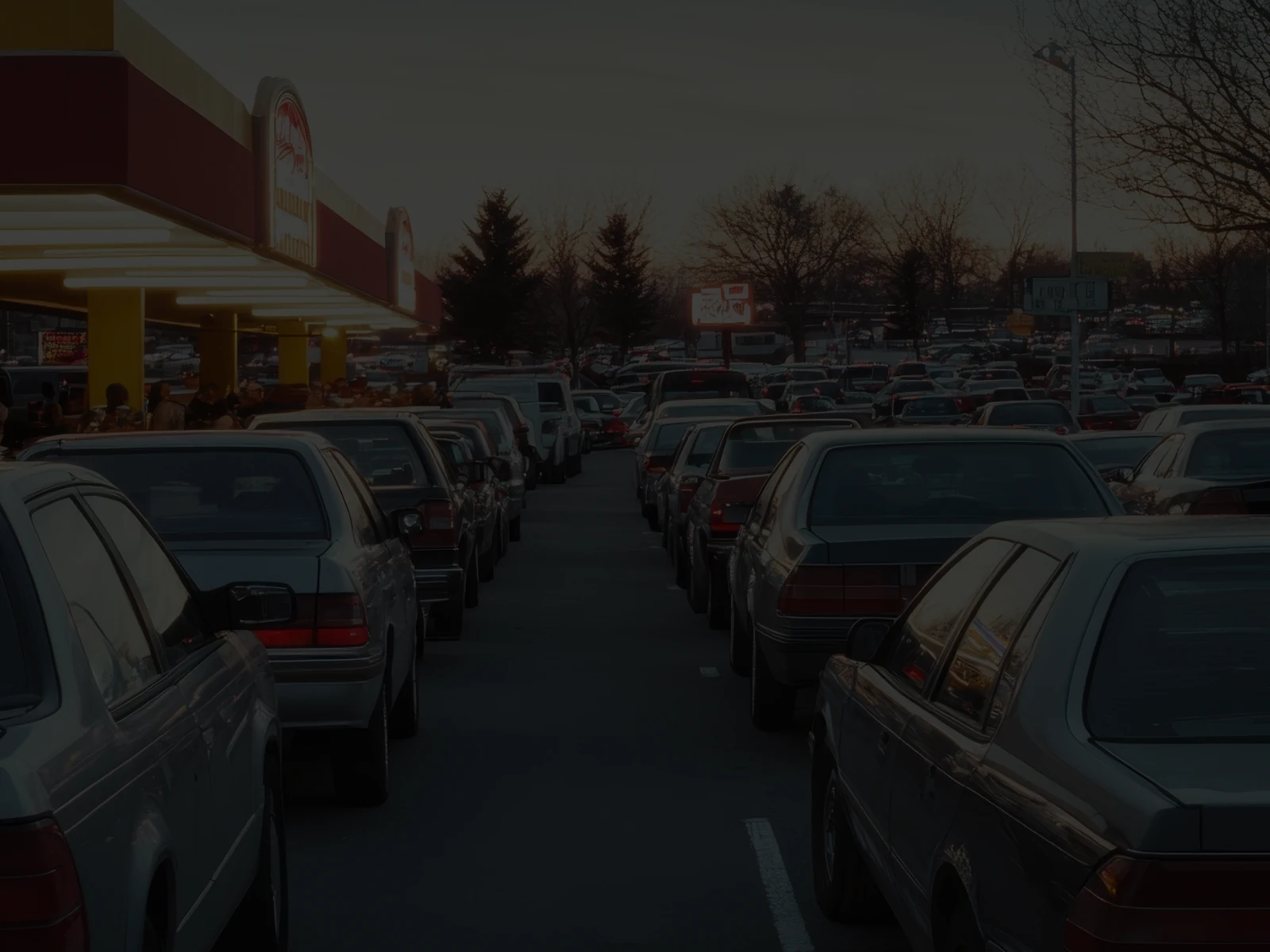
Long line of cars queued in a restaurant parking lot at dusk
Order 4182 — Lane 1
Six items, matched to vehicle
Order taken at speaker0:41
Sent to kitchen display0:02
Prepared · car arrivingRunning
Matched at windowQueued
Bay 2pull-forward if not ready on arrival
03 — Patterns

Shows when the lane slows.

Lane times by hour, day and shift, so you can see whether delays follow the rush or the roster.
  • Spot the busiest hours of your day
  • Compare shifts without scoring individual staff
  • Track how many cars come back within 30 days
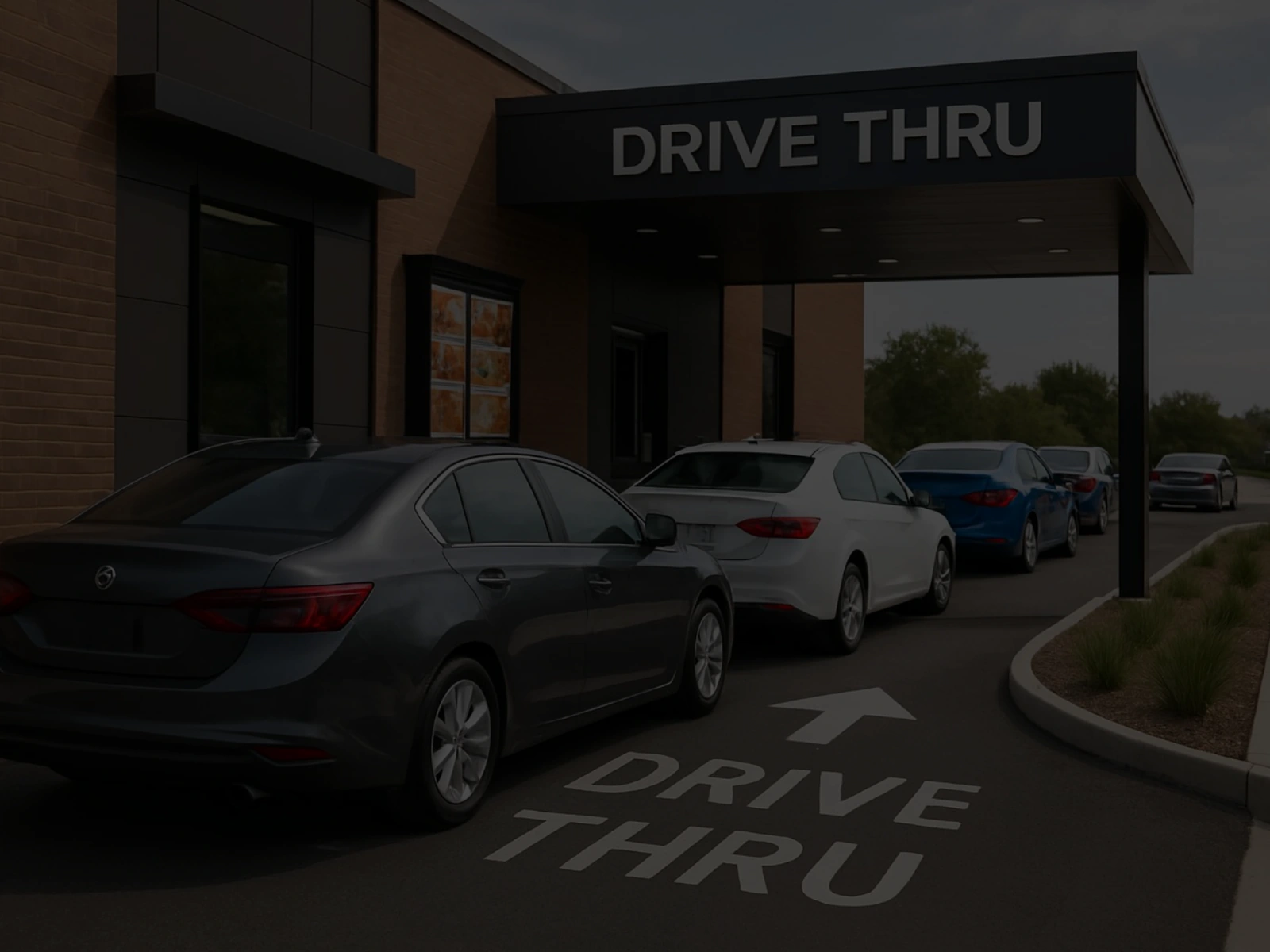
Cars lined up under a Drive Thru canopy beside a brick building, with a Drive Thru arrow painted on the road
Time in lane
By hour, today vs. target
Lunch peak
3:12Avg time
PickupSlowest stage
LiveRefresh
04 — Stores

Compares every store in one table.

Rank all your locations by lane total, seconds against goal or slowest station, then open any store with one click.
  • Rank every store by speed in one view
  • Open any store’s own view in one click
  • Get alerts when a store or camera needs attention
Woman working at a keyboard in front of two monitors showing software code in a dark room
Estate overview
14 stores · 22 lanes
Store 014Whitefield · 2 lanes3:02
Store 027Andheri · 1 lane3:19
Store 031Gurugram · 2 lanes4:08
Store 042Camera 02 offlineCheck
Every store reporting1 needs attention
Lane formats

Set up for the way your lane is built.

No two lots are the same. Drive-Thru is configured to your lane layout at setup, so every station and goal matches how your drive-thru runs.
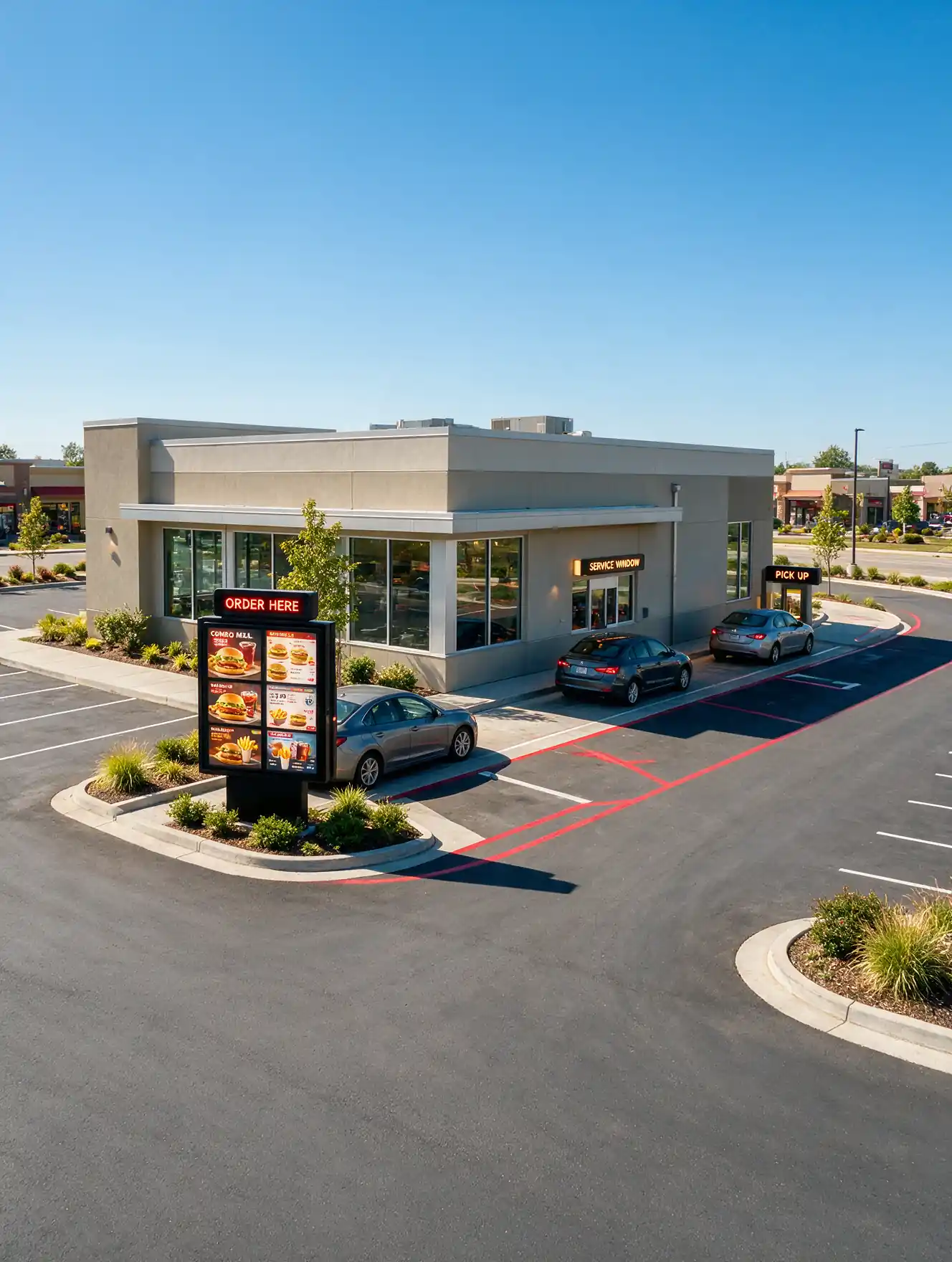
Aerial view of a fast food restaurant with an order menu board, a single drive-thru lane and a pickup window

Single-lane drive-thrus

One menu board, one line and the windows that follow. Every station is timed against the goals your brand sets, and franchisees can make them tighter.
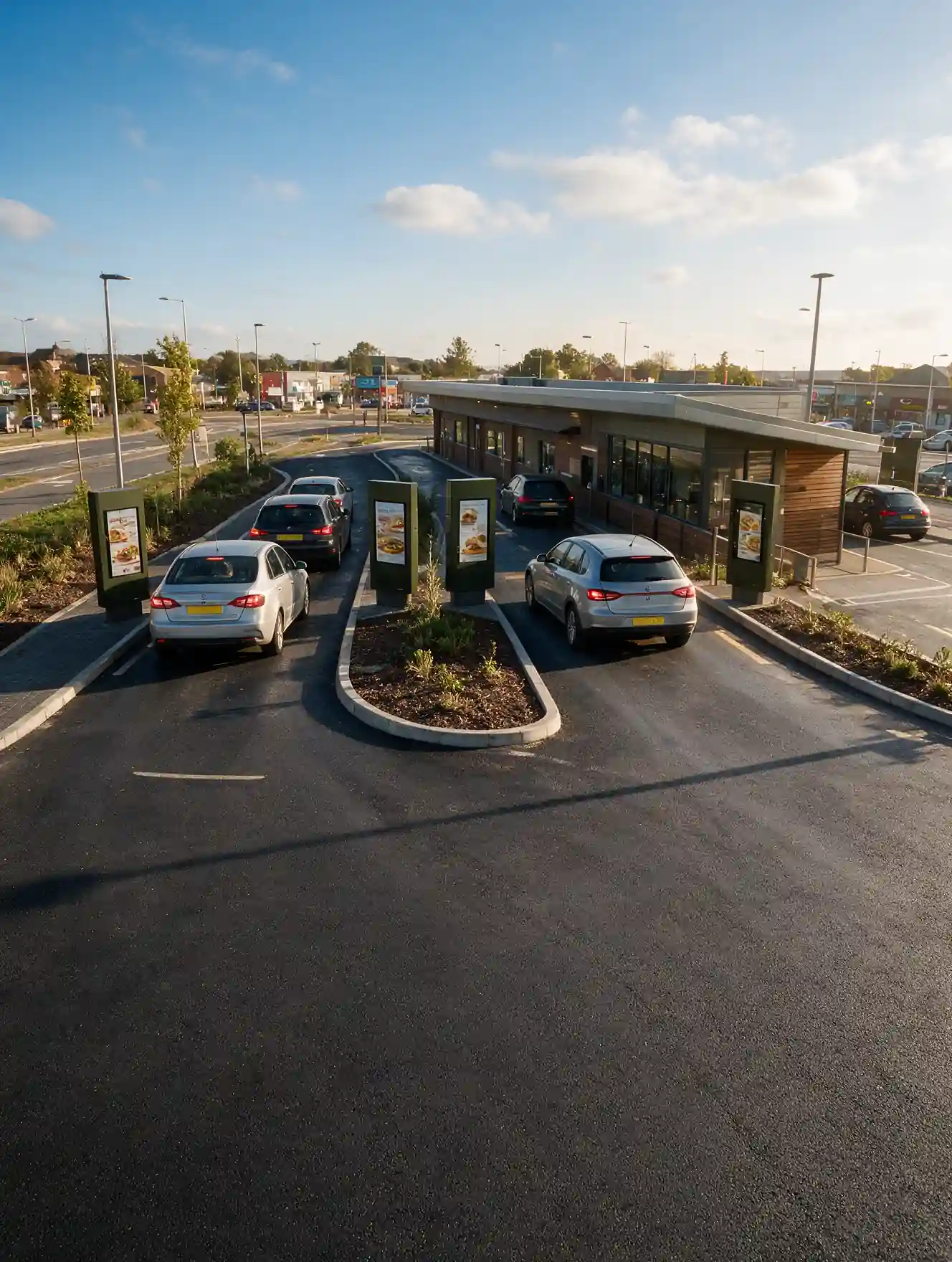
Aerial view of cars entering a Y-shaped drive-thru lane with digital menu boards on a central island

Y-lanes with tandem menu boards

Two ordering points that merge into one line. Each menu board is timed on its own, so you can see which side is slowing the cars behind it.
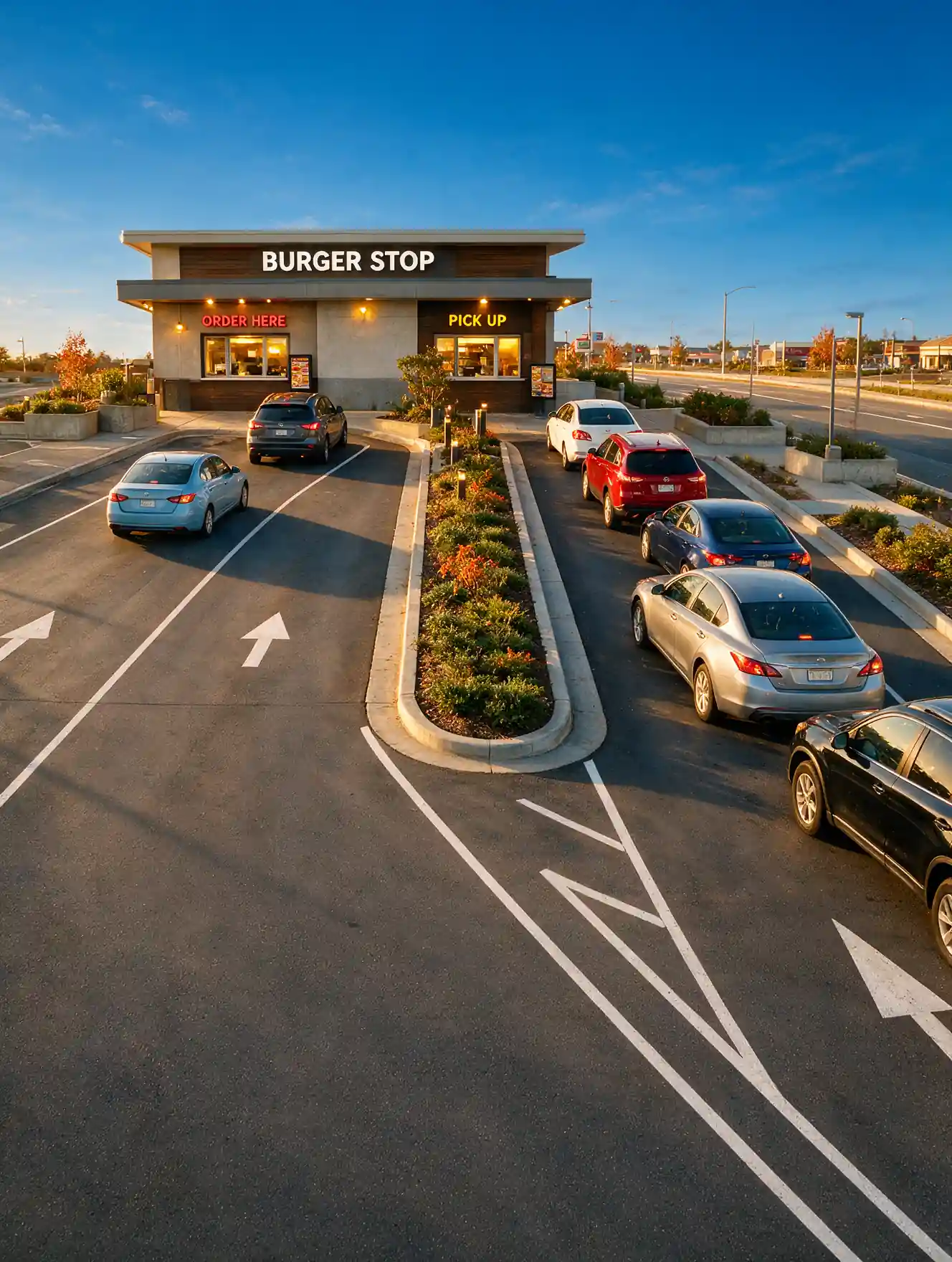
Two lanes of cars at a fast food drive-thru splitting around a landscaped island and merging before the pickup window at sunset

Dual-lane drive-thrus

Two lanes running side by side, each with its own times and its own slowest station, so a slow lane never hides behind a faster one.
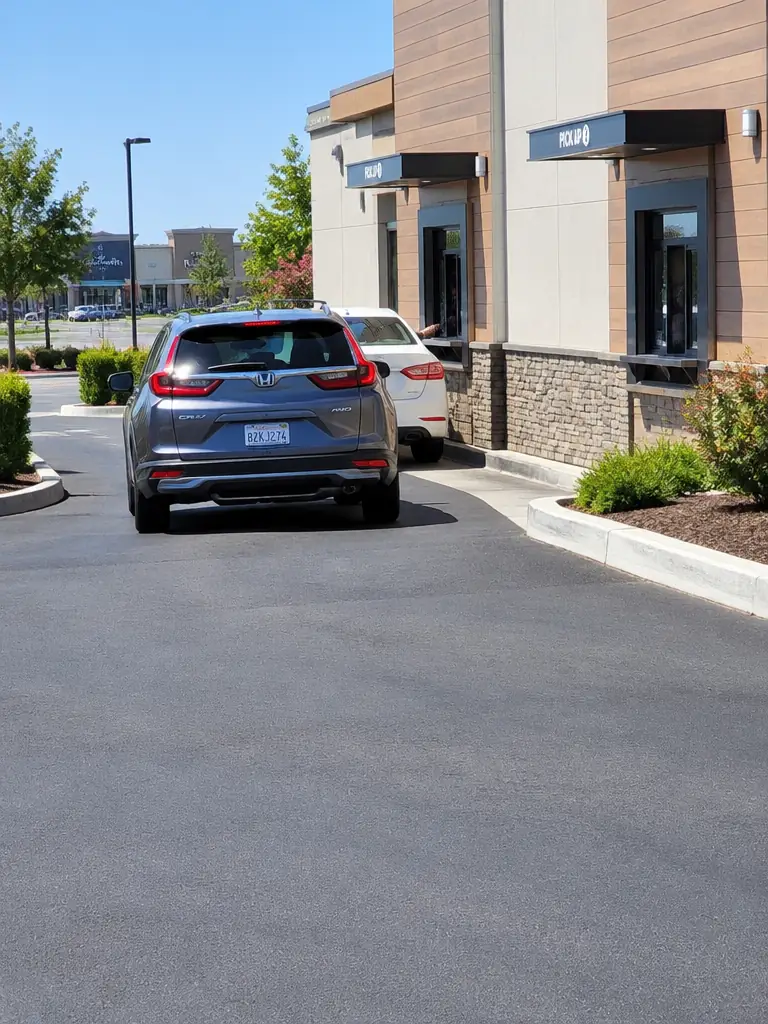
Gray SUV waiting behind a white car at a building with two drive-thru pickup windows

Lanes with two pickup windows

Two handoff points at the end of the lane. Each one is timed against its own goal, so you can see which window is holding up the line.

FAQs

What is Drive-Thru?

Drive-Thru is software from Transline Technologies that times every car through your drive-thru lane. It covers the menu board, the line, the pay window and pickup, and shows every location on one online dashboard. It works as part of StorePulse, so teams already using StorePulse will find the same layout, exports and alerts.

Do we need new cameras or hardware in the lane?

Yes. Drive-Thru works with ANPR and LPR cameras placed to cover each station of your lane, and our team confirms the right setup for your lot. The cameras connect to a small on-site unit on your store network, with no loops or digging in the lane surface. Camera zones are then set up and checked before anything goes live.

Do we need to connect our POS?

Not to get started. Lane times, car counts and line length all come from the cameras, so no POS link is needed for them. Sales, ticket values and revenue do need your POS connected. That can be switched on later, as Drive-Thru does not report sales on its own.

How does Drive-Thru time each stage?

Each station gets its own zone at setup: menu board, waiting in line, pay window and pickup window. Drive-Thru times every car through each zone and adds them into a total lane time. Before any numbers go live, each store runs for 48 hours next to your current timer or POS, and you see how closely they agree.

Does video leave the store?

No. Video is processed on site over your own store network and stays in the building. Only times, counts and lane events go to the online dashboard, so your team gets every number it needs without footage ever being streamed offsite.

How is Drive-Thru different from sensor-based lane timers?

Many lane timers rely on sensors or loops set into the ground, which only mark when a car passes a fixed point. Drive-Thru uses camera intelligence instead, so it times every station, counts the line on the lot and sees cars that leave before ordering, with nothing installed in the lane surface.

Who in our team uses the Drive-Thru view?

Operations leaders check whether every store is hitting its service goal. Regional and district managers decide which store to visit and what to fix. Franchisees compare their lanes with the brand, and analysts export the numbers. Your crew gets a separate live screen in the store, made for acting in the moment.

How do I get a demo?

Book a demo and we will walk you through the dashboard, from the table of all your locations down to a single car's journey through the lane. If you would rather talk first, reach out through our contact page and our team will set up a time that suits you.

Get in lane

Find your slowest station.

Book a demo and we will walk you through the dashboard, from the first car joining the line to the last one leaving pickup.